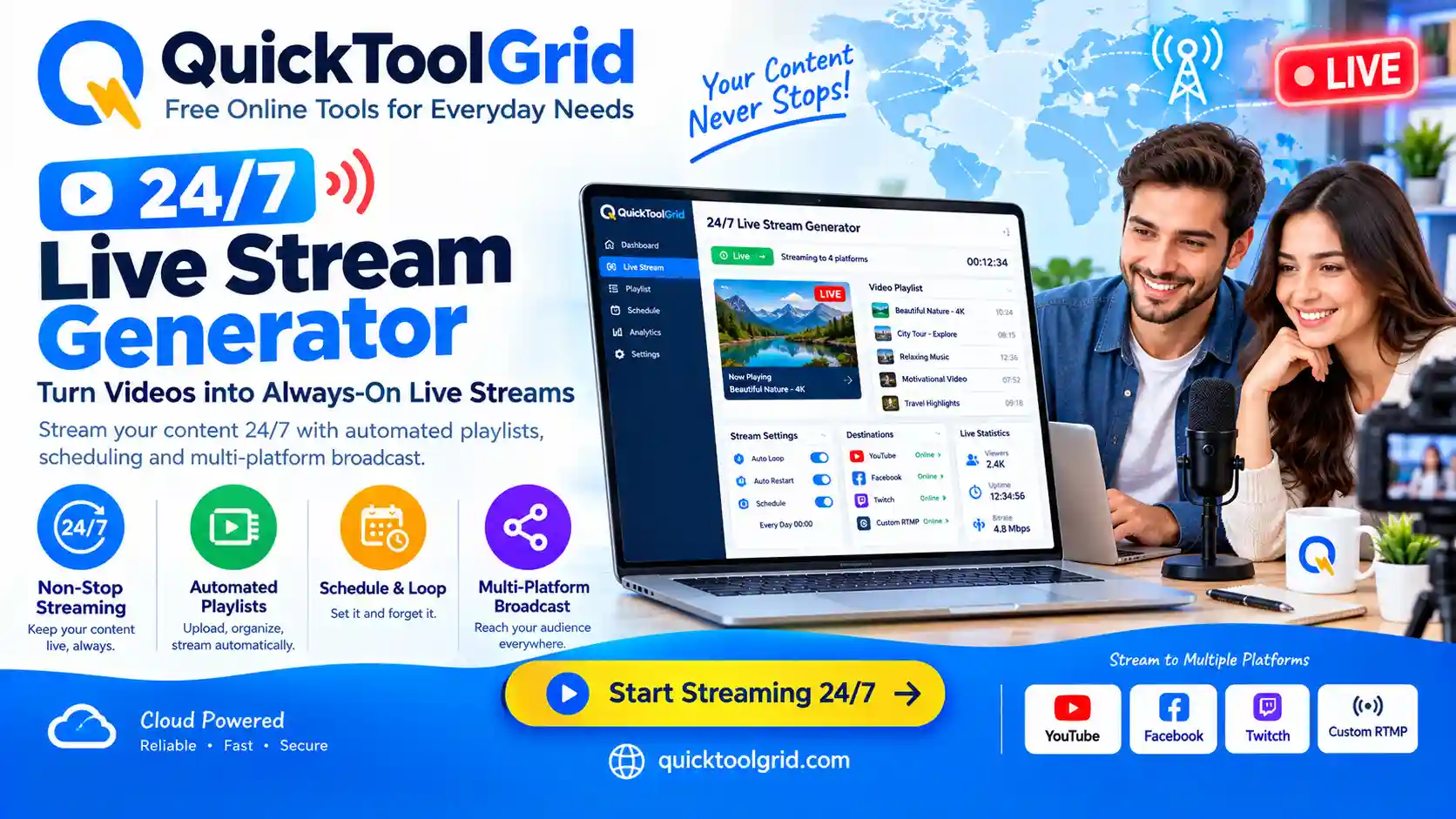
24/7 live stream setup tool by Quick Tools Grid for YouTube, Facebook and Twitch

24/7 Live Streaming Generator

⚡ Quick Tools Grid — 100% free, runs in your browser, no sign-up
24/7 Live Stream Generator
24/7 loop, simulcast & deploy deck
SOURCE
DESTINATION
READY
01 — SOURCE
Video Files
Click to add video file(s), or drag & drop here
Your video is not uploaded anywhere. The tool only reads the file name to build the command, and you copy the video to your own server yourself.
PREVIEW — scrub to a frame you like
THUMBNAIL
02 — DESTINATION
Platform & Quality
03 — CONTENT
Niche & SEO Metadata
04 — RELIABILITY
Stay live through crashes & network drops
ffmpeg alone won’t restart itself if the connection drops or the process crashes. These generate the safety net real 24/7 channels run on top of the command below.
FFMPEG COMMAND
05 — METADATA
Ready to paste into YouTube
TITLE
DESCRIPTION
TAGS
06 — DEPLOY
Run it 24/7 on a free server
1Create an Always-Free ARM instance on Oracle Cloud (Ubuntu 22.04).
2SSH in and run: sudo apt update && sudo apt install ffmpeg -y
3Upload your video file(s) — and playlist.txt if you used more than one — with scp or wget, into the working directory you set above.
4Download the safe-restart launcher above, upload it too, then run: chmod +x launch-stream.txt && ./launch-stream.txt inside screen -S live.
5Press Ctrl+A then D to detach — the wrapper keeps restarting ffmpeg on its own even if it crashes.
1Create the cheapest Linux instance on AWS Lightsail.
2Install ffmpeg with sudo apt install ffmpeg -y.
3Upload your files and the safe-restart launcher, then run it with nohup so it survives disconnects: nohup bash launch-stream.txt &
4Attach a static IP in Lightsail so the setup stays reachable after a restart.
1Any Ubuntu/Debian VPS works — DigitalOcean, Hetzner, Contabo, etc.
2Install ffmpeg, then upload your video file(s) into the working directory you set above.
3Download the systemd service file above, save it as /etc/systemd/system/stream.service, then run: sudo systemctl enable --now stream — it auto-starts on boot and restarts itself on crash.
4Download the health-check script, save it on the server as monitor.sh, and add it to cron every 5 minutes as a second layer of safety: */5 * * * * bash /path/to/monitor.sh
5Never expose your stream key in a public repo or a screen share.
everything above runs in your browser — nothing is uploaded anywhere

Free 24/7 Live Streaming Generator — YouTube, Facebook, Auto-Restart & SEO in One Deck

Running a 24/7 looping live stream (lofi radio, ambient nature scenes, a gaming loop, or a build timelapse) takes more than just an ffmpeg command — it takes a command that survives crashes and network drops, a server to run it on, and metadata that actually gets the channel found. This free tool builds all three: the exact ffmpeg command for your source video and destination platform, auto-restart scripts so the stream keeps running unattended, and ready-to-paste YouTube title/description/tags.

⚠️ Important: This tool only generates commands and scripts in your browser — it does not stream, host, or upload your video anywhere. You still need your own server (a VPS or cloud instance) with ffmpeg installed to actually run a 24/7 stream continuously.

Why a Plain FFmpeg Command Isn’t Enough

A single ffmpeg command works — until it doesn’t. Network blips, server restarts, or an occasional ffmpeg crash will eventually stop a stream that’s only running as one foreground command, and once it stops, it stays stopped until someone notices and manually restarts it. That’s the gap the reliability panel fills: a restart loop script for a quick setup, a systemd service for genuinely stable always-on hosting, and an optional health-check script as a second layer of safety that catches anything the first two miss.

Choosing a Resolution and Bitrate

720p at roughly 2500kbps is a reasonable default for most 24/7 channels — it looks clean without demanding a powerful (and expensive) server. Higher resolutions like 1080p need noticeably more CPU for encoding and more sustained upload bandwidth, which matters most on a budget or free-tier cloud instance. Use the upload speed field to sanity-check whether your server’s connection can sustain your chosen settings before committing to them long-term.

A Note on Platform Policies

YouTube, Twitch, and similar platforms generally support continuous live streams, but each has guidelines against streams that are purely reused, looped content with no original elements or engagement — enforcement and specifics do shift over time, so it’s worth checking each platform’s current community guidelines and monetization policies before building a channel strategy entirely around a 24/7 loop, especially if monetization is the goal.

Keeping Your Streaming Key Safe

Your stream key is what lets anyone broadcast to your channel — treat it like a password. This tool never sends it anywhere; everything happens locally in your browser. The generated scripts do embed the key in plain text though, since ffmpeg needs it to connect, so avoid uploading those files to a public GitHub repo, sharing your screen with them visible, or leaving them somewhere others can access.

Frequently Asked Questions

Does this tool actually stream my video or host my channel? +
No. This tool only generates the ffmpeg command and supporting scripts locally in your browser. You still need your own server (a VPS or cloud instance) with ffmpeg installed to actually run the stream.
Do I need a server to use this? +
Yes, for a true 24/7 stream. Running it from your own computer works too, but the stream stops if your computer sleeps, loses internet, or is turned off. A small cloud server (some providers offer a free tier) keeps it running continuously.
Is 24/7 looping content allowed on YouTube and Twitch? +
Both platforms generally allow continuous live streams, but each has policies against low-effort, purely repetitive “reused content” streams with no original elements — check current YouTube and Twitch community guidelines before launching, since enforcement and rules do change over time.
Why do I need the auto-restart scripts if ffmpeg already works? +
A single ffmpeg command stops permanently the moment it crashes or the network briefly drops — which happens eventually on any long-running stream. The launcher script and systemd service restart it automatically so the stream keeps running without you manually watching it.
Is my stream key safe using this tool? +
The key never leaves your browser — everything runs locally and nothing is uploaded to any server by this tool. That said, the generated scripts do contain your stream key in plain text, so keep those downloaded files private and never commit them to a public code repository.
What resolution and bitrate should I use? +
720p at around 2500kbps is a reasonable default that balances quality and server cost. Use the upload speed field to check whether your connection or server’s upload bandwidth can sustain your chosen resolution reliably.
Is this tool free? +
Yes, 100% free with no sign-up. Server hosting itself is a separate cost you arrange yourself, though some cloud providers offer a free tier suitable for a low-bitrate stream.

More Free Tools