Free Invoice Generator
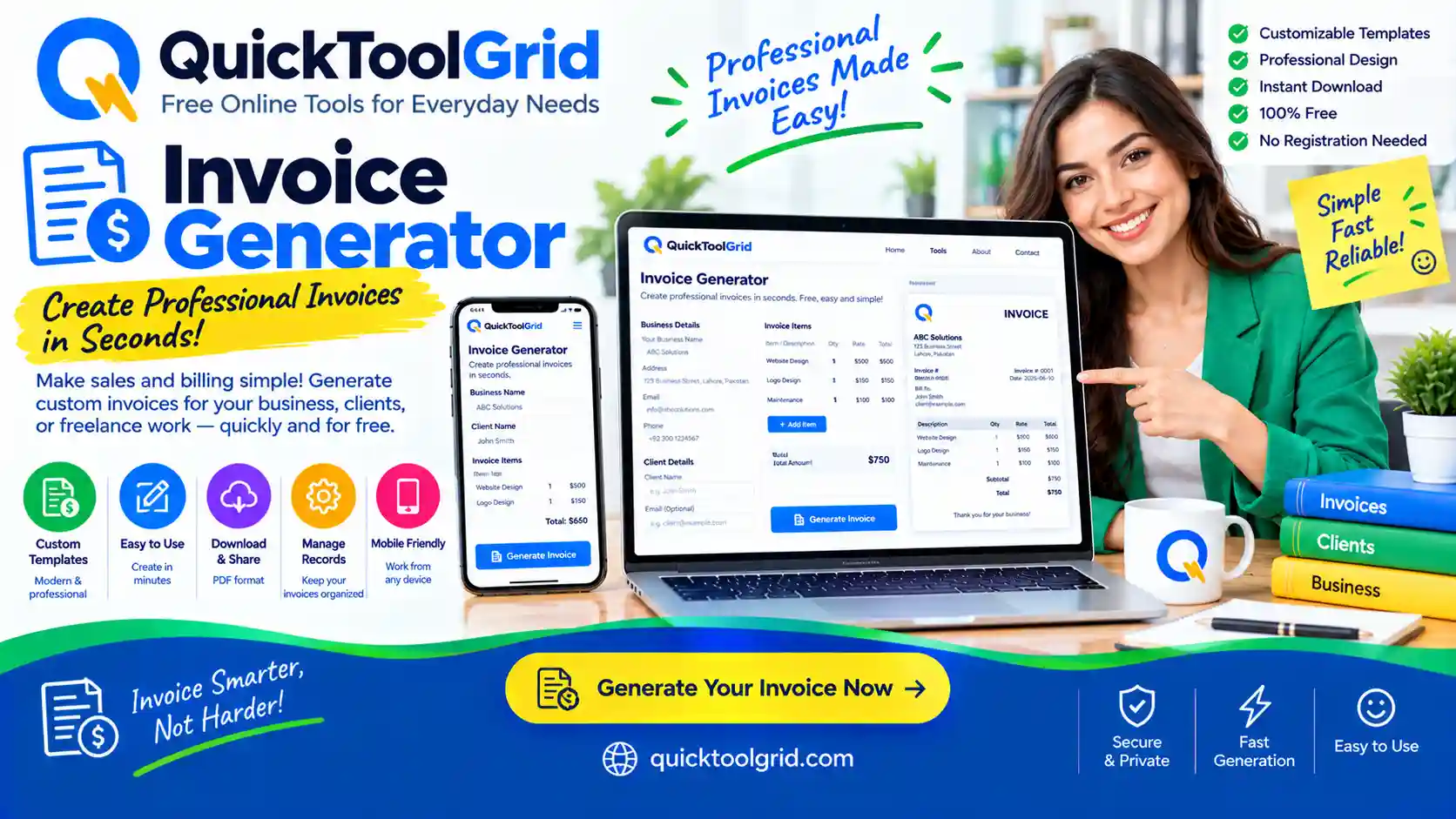
This free invoice generator lets you create a professional invoice in minutes. Add your business details, line items, tax and due date, then download the invoice as a PDF or Word file. There is no sign-up, and everything stays in your browser.
Last updated: October 13, 2026. By the Quick Tools Grid team.
Your business
Bill to
Invoice details
Items
Your invoice updates as you type. In the print window, choose “Save as PDF” as the destination. Check every figure before you send it.
What is an invoice generator?
An invoice generator is a tool that turns your business details, your client’s details and a list of items into a clean, professional invoice. It adds up the subtotal, discount, tax and total for you, so you avoid maths mistakes and can send a document that looks consistent every time. This one works in your browser, so you can use it without creating an account.
How to create an invoice online
- Enter your business name, address and contact details. Add your logo if you have one.
- Add your client’s name and address.
- Set an invoice number, the issue date, the due date and the currency.
- Add each item with a description, quantity and unit price.
- Enter a tax rate or a discount if they apply, and add any notes or payment terms.
- Check the preview, then click “Save as PDF” or download a Word file.
What to include on an invoice
- The word “invoice”, a unique invoice number and the date.
- Your business name, address and contact details.
- Your client’s name and address.
- A clear description of each product or service, with quantities and prices.
- The subtotal, any tax or discount, and the total amount due.
- The due date and how you want to be paid.
Invoice numbers, due dates and payment terms
Give every invoice a unique number and keep them in order, for example INV-001, INV-002 and so on. A sequence makes your records easier to follow, and some countries expect it. Common payment terms include “due on receipt”, “Net 14” or “Net 30”, which means payment is due 14 or 30 days after the invoice date. Write the terms in the notes box so there is no confusion.
Tax on invoices: VAT, GST and sales tax
You can choose a label such as Tax, VAT, GST or Sales tax, and enter the rate that applies to you. The tool applies the rate you enter to the amount after any discount. It does not decide which rate you should charge, because tax rules and rates differ by country and sometimes by item. If you are registered for VAT or a similar tax, include your registration number. For advice on what to charge, ask a qualified accountant or your tax authority. You can also estimate your own income tax with our World Income Tax Calculator.
Common invoice mistakes
- Reusing an invoice number or skipping numbers without a reason.
- Leaving out the due date or payment details.
- Vague descriptions such as “work done” instead of what you delivered.
- Typing the wrong client name or address.
- Forgetting to include tax when it applies to your business.
Starting a business? Try our Business Name Generator, then create your About Us page. You can find every tool on the Tools Grid.
Frequently asked questions
Is this invoice generator free?
Yes. It is free to use, with no sign-up and no watermark on your invoice.
Do I need to create an account?
No. Open the page, fill in the details and download your invoice.
Is my invoice data stored or uploaded?
No. The invoice is built in your browser, and your details and logo are not sent to our servers. Because nothing is saved, copy or download your invoice before you close the page.
How do I save my invoice as a PDF?
Click “Save as PDF”. Your browser opens its print window, where you choose “Save as PDF” as the destination and save the file.
Can I add my logo?
Yes. Choose an image up to 1 MB and it appears at the top of your invoice.
Can I use a different currency?
Yes. You can choose from a list of common currencies, including US dollars, British pounds, euros, Pakistani rupees and UAE dirhams.
Does the tool calculate tax automatically?
It applies the tax rate you enter to the amount after any discount. It does not choose the rate for you, so check which rate applies to your business.
Is the invoice legally valid?
Invoice requirements differ between countries. This tool creates a standard invoice layout, but it is not legal or tax advice, so check the rules that apply to you.